
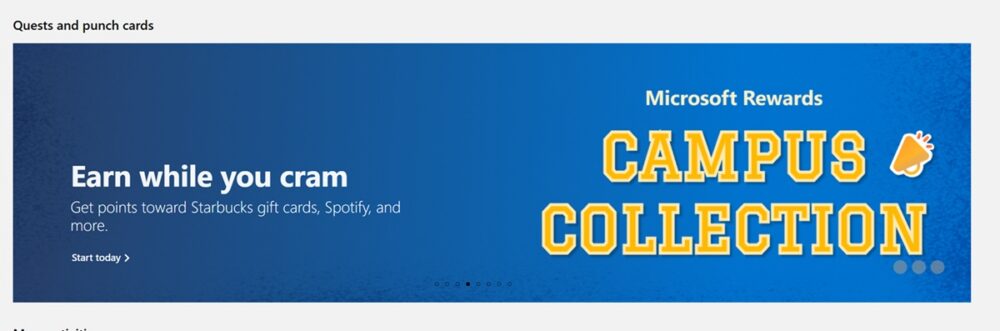
If you’ve signed into your Microsoft Rewards dashboard recently, you may have noticed a promotional tile with a name like “Campus Collection” sitting alongside your Daily Set. This is a limited-time punch card — one of Microsoft Rewards’ recurring promotional formats that asks you to complete a series of small tasks in order to unlock a bonus payout of points at the end.
Punch cards like this one live inside the broader Microsoft Rewards program, which awards points for everyday activities like Bing searches, using Microsoft Edge, and completing quizzes on the Rewards dashboard. The “PC” in the URL simply tells you this particular punch card is tied to activity you complete on a Windows PC, rather than on Xbox console or mobile.
Key Summary
- The Campus Collection PC Punch Card is a promotional Microsoft Rewards activity tied to a limited-time campaign, likely timed around back-to-school season.
- Like other punch cards, it asks you to complete a set number of “punches” — usually daily searches, sign-ins, or dashboard activities — before a deadline.
- Because this is a promotional card, its exact requirements, point value, and availability can vary by account, region, and Rewards level.
- The safest way to confirm what your specific card requires is to open the link while signed into your own Microsoft account.
How Punch Cards Like This One Work
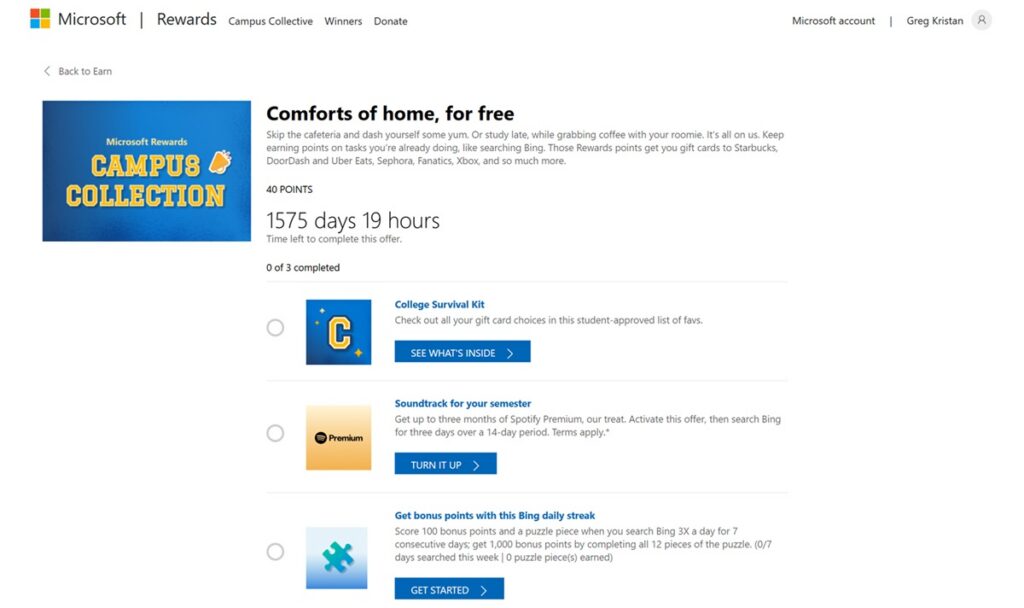
Punch cards are Microsoft’s way of turning a routine habit — like searching on Bing every day — into a mini-challenge with a bigger reward at the end. Instead of earning a handful of points per search, a punch card lets those same actions “punch” a card that pays out a lump sum of bonus points once every square is filled in.
Most punch cards follow a similar structure:
- Activation — You typically need to open the punch card tile and confirm you want to participate before your activity starts counting.
- Progress tracking — Each qualifying action (a search, a sign-in, a completed daily set) fills in one punch on the card.
- Deadline — Punch cards run for a set window, often a few weeks to a month, shown as a countdown on the tile.
- Claiming — Once every punch is filled, you may need to manually click “claim” inside the dashboard or the Xbox app before the bonus points land in your balance.
That last step trips up a lot of people. Microsoft Rewards users on the community forums have reported that points don’t always post automatically — the reward sits there until you go back and actively claim it. It’s worth checking back on the tile once you believe you’ve completed it, rather than assuming the points appeared automatically.
Who Benefits From This Punch Card?
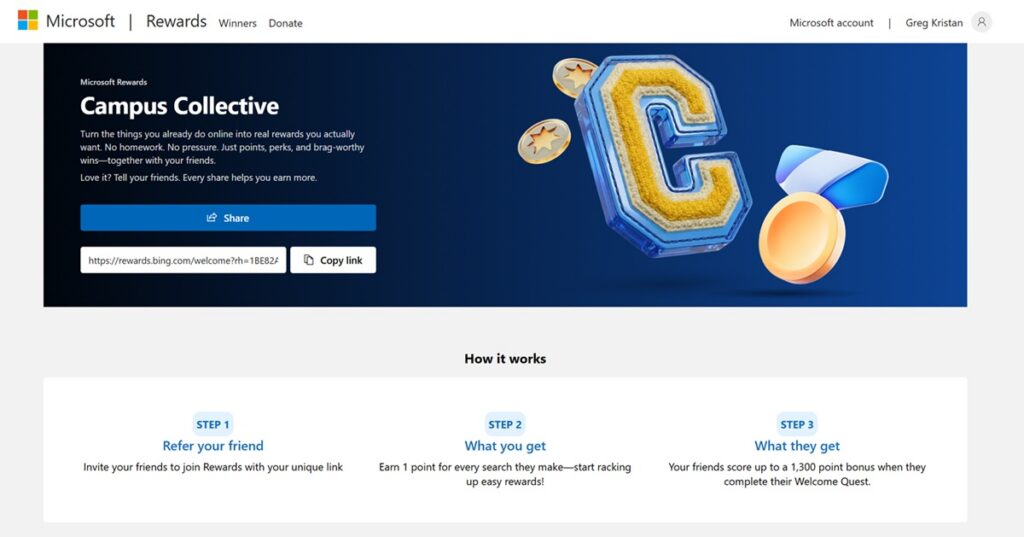
- Existing Microsoft Rewards members who already search with Bing or use Edge day-to-day. The punch card layers bonus points on top of habits you’re already forming, so it costs you little extra effort.
- Students and back-to-school shoppers. Given the “Campus Collection” name, this campaign is likely aimed at students building a points balance ahead of the school year — useful if you’re saving toward a gift card, Xbox Game Pass, or a Microsoft Store purchase.
- Point stackers. If you’re already working through the Weekly PC Bonus, daily searches, and quizzes, adding a punch card on top is a low-effort way to squeeze a few hundred extra points out of the same routine.
- Casual users looking for a nudge. A countdown clock and a visible progress tracker can be a helpful motivator if you tend to forget to open the Rewards dashboard regularly.
It’s a much smaller benefit for people who rarely use Bing, Edge, or the Rewards dashboard at all — the punch card only pays off if you’re doing the underlying activity anyway.
How to Get Started
- Sign in to your Microsoft account and open the Rewards dashboard directly, since the offer is tied to your specific account and region.
- Read the requirements on the tile. Punch cards typically spell out exactly what counts — a certain number of searches, sign-ins, or daily set completions — along with the deadline.
- Activate the card if it asks you to opt in before tracking begins.
- Build it into your existing routine. Run your normal Bing searches in Edge, complete your daily set, and check back on the tile every few days to confirm your punches are registering.
- Claim the reward as soon as the card shows all punches complete. Don’t wait — some promotional cards expire shortly after completion if the points aren’t manually claimed.
A Few Tips
- Don’t wait until the last day. Since most punch cards need activity spread across several days, cramming everything into the final 24 hours usually isn’t possible.
- Use the same account and browser you normally use for Rewards. Signing in on a different device or account can cause progress not to track.
- Check back regularly. If the tile shows a stalled punch count, it may mean an activity didn’t register — better to catch that early than to find out after the deadline.
- Treat the exact point total as a moving target. Microsoft frequently adjusts point values, region availability, and reward tiers, so what one person reports online may not match what you see.
Is It Worth Doing?
If you already use Bing, Edge, or the Rewards dashboard, yes — a punch card like this is close to free points for habits you already have. It won’t replace a full-time income stream, but stacked alongside daily searches, the Weekly PC Bonus, and other quests, it’s a reasonable way to pad your points balance ahead of a redemption. The one thing worth remembering is that promotional cards like “Campus Collection” are temporary and account-specific, so the dashboard itself — not a blog post — is always the final word on what your card requires and what it pays out.