
If you’ve set up auto redeem on Microsoft Rewards and your points are just sitting there instead of turning into gift cards, you’re not alone. This is one of the most common complaints among Rewards members, and the good news is that the causes are usually predictable and fixable. Below, we’ll walk through how auto redeem is supposed to work, the most common reasons it stalls out, and what to do if you need to escalate the issue to Microsoft directly.
As a note, I don’t personally use the auto redeem mainly due to wanting control over what I will eventually redeem my points for.
Key Summaries
- Setup — Auto redeem needs to be manually configured per reward from the Rewards dashboard, with a frequency or point threshold selected. Not every reward supports it, so confirm the option is available before assuming it’s active.
- Points — If your balance falls even slightly below the reward’s current point cost, auto redeem won’t trigger. Point costs can change, so verify the current price against your balance.
- VPN policy — Redeeming from outside your account’s home region or market violates Microsoft Rewards policy and can silently block redemptions. Turn off VPNs when earning or redeeming points.
- Contact info — Verification codes are sent to the phone number or email on file. VoIP numbers, outdated info, or numbers shared across accounts can prevent codes from arriving.
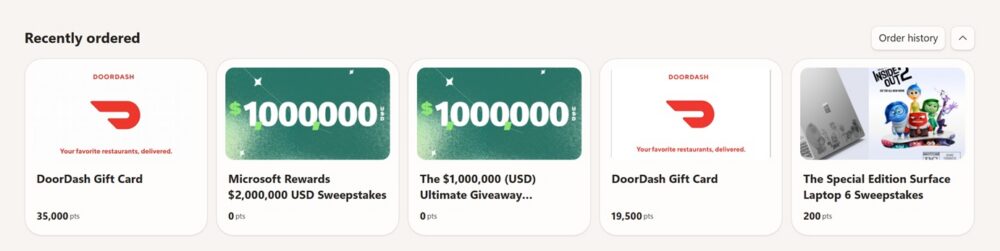
- Microsoft delays — Some redemptions, like DoorDash gift cards, can legitimately take a few minutes to a few days to process even when nothing is wrong. Give it 24-48 hours before escalating.
- Stock issues — High-demand gift cards go out of stock without a published restock schedule. Check back regularly or set a reliable backup reward for auto redeem.
- Support form — If none of the above resolves it, file a ticket at rewards.bing.com/support or through support.microsoft.com with your account details and the specifics of the failed redemption.
How to Set Up Auto Redeem in Microsoft Rewards
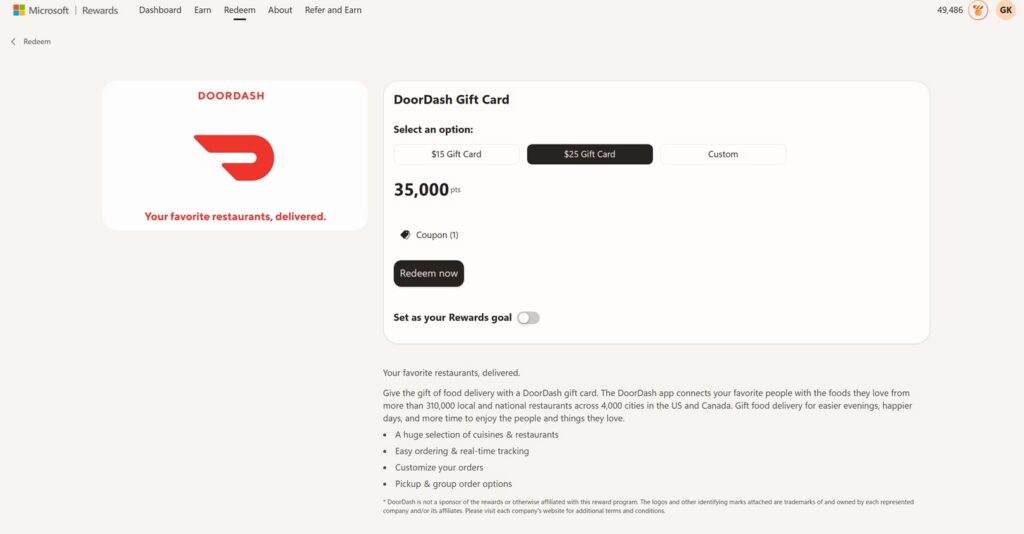
Before troubleshooting, it’s worth confirming your auto redeem is actually configured correctly, since a lot of “not working” reports turn out to be a setup issue.
- Go to the Microsoft Rewards dashboard on desktop (rewards.bing.com) or open the Rewards app.
- Click on your points balance or head to the Redeem section.
- Look for “Recurring redemption” or “Auto redeem” — this option isn’t available for every reward, so check the specific gift card or item you want.
- Select the reward you want automatically redeemed, choose the frequency or point threshold, and confirm your payment/delivery details (email or phone number, depending on the reward).
- Save the setting and check back periodically to confirm it’s still active, since account changes can sometimes reset these preferences.
Once that’s set up correctly, most redemptions should process without you lifting a finger. When they don’t, it usually comes down to one of the five issues below.
1. Insufficient Points
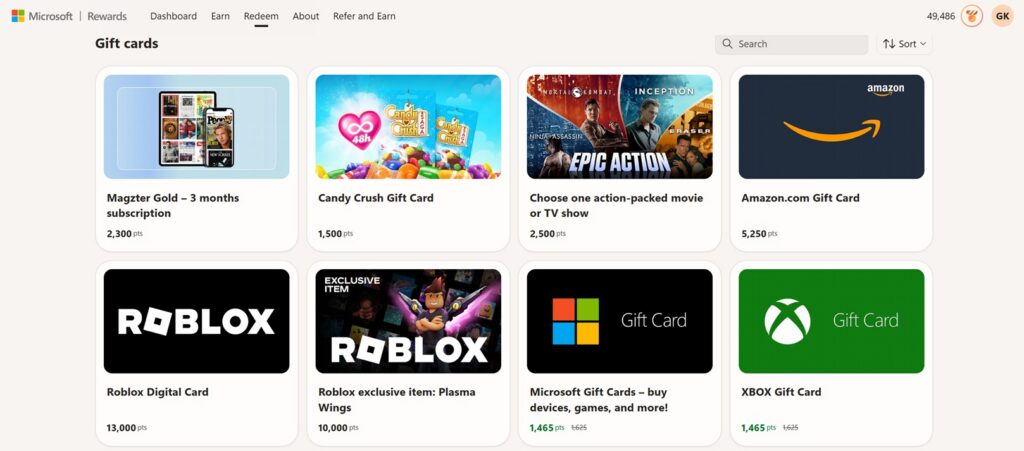
This sounds obvious, but it trips people up more than you’d expect. Auto redeem typically triggers once you cross a specific points threshold tied to the reward’s cost. If your balance dips even slightly below that threshold — because points expired, were deducted for a policy violation, or you spent some elsewhere — the automatic redemption simply won’t fire. Double-check the current point cost of your selected reward, since prices do fluctuate, and compare it against your live balance before assuming something is broken.
2. Violating Terms of Policy (Including VPN Use)
Microsoft Rewards ties redemptions to your account’s home region and market. If you’re using a VPN or otherwise appear to be browsing or redeeming from a different country than the one tied to your Microsoft account, this is treated as a violation of program policy, not a technical glitch. Attempting to redeem an item from outside your current market can silently block or delay the transaction, and repeated attempts can put your account under review. If you regularly use a VPN for privacy or work, try disabling it specifically when earning points or redeeming rewards.
3. Issues With the Phone Number or Email on File
Many redemptions, especially gift cards, require a one-time verification code sent to the phone number or email associated with your account. If that number is a VoIP line (Microsoft doesn’t accept these), outdated, or already linked to another Microsoft account, the code may never arrive, and auto redeem will stall waiting for a confirmation that isn’t coming. Requesting the code too many times in a short window can also trigger a temporary delay of several minutes before a new one is sent. It’s worth confirming your contact info is current, using a real mobile or landline number, and giving it a few minutes between retry attempts.
4. Delays on Microsoft’s Side
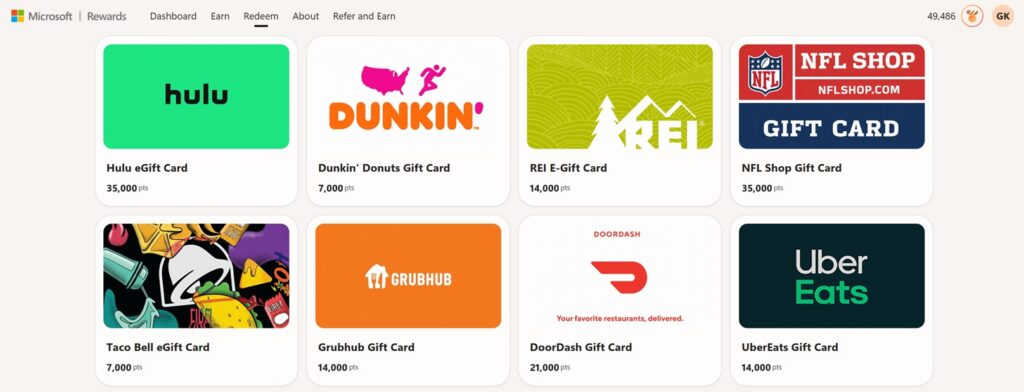
Sometimes nothing is actually wrong with your account, setup, or points — the delay is simply on Microsoft’s end. Redemption processing times vary a lot depending on the reward type and current demand. As an example, DoorDash gift card redemptions have been reported to take anywhere from a few minutes to a few days to actually post, even when everything on the user’s side is correct. If your redemption is pending rather than failed outright, the most useful thing you can do is wait it out for 24-48 hours before assuming it’s stuck, then follow up with support if it still hasn’t resolved.
5. Items May Be Out of Stock
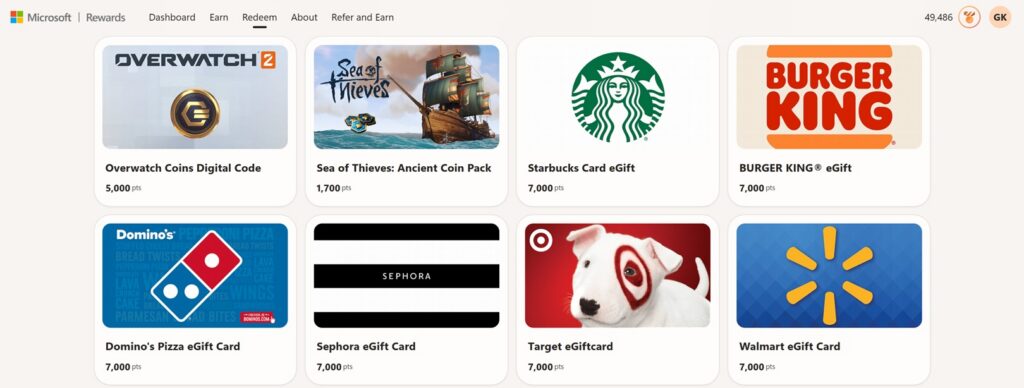
Popular gift cards, especially from high-demand retailers, periodically go out of stock due to demand outpacing supply in a given region. When that happens, auto redeem can’t complete the transaction even though your points and account are perfectly fine. Microsoft doesn’t publish a restock schedule, so the best approach is to check the Redeem page regularly, or consider setting your auto redeem to a backup reward that tends to stay in stock more reliably.
Where to Get Help If the Problem Persists
If you’ve ruled out all five of the issues above and your auto redeem is still not processing, the next step is to file a support request directly with Microsoft Rewards rather than continuing to guess:
Microsoft Rewards Support form: https://rewards.bing.com/support
You can also visit the general Microsoft Support site at https://support.microsoft.com and search “Microsoft Rewards redemption” to find related troubleshooting articles or start a live chat with a support agent. When filing a ticket, include your account email, the specific reward you tried to redeem, the date and time of the attempt, and any error messages you received — this speeds up the review process considerably.