
Key Takeaways
- Free program: Microsoft Cashback (formerly Bing Rebates) is a no-cost benefit for eligible Microsoft account holders who are enrolled in Microsoft Rewards — no fees, no credit card required.
- Edge is essential: The easiest way to earn is by shopping through Microsoft Edge, where cashback offers pop up automatically at participating retailers’ websites. Users using Chrome or Safari won’t get this feature unless you use an extension
- $1,000 annual cap: You can earn up to $200 per month and up to $1,000 per year in cashback, paid out through a linked PayPal account.
- Shopping stores hub: The Microsoft Shopping: Cashback Stores page is the best place to browse active offers and stack savings before you check out.
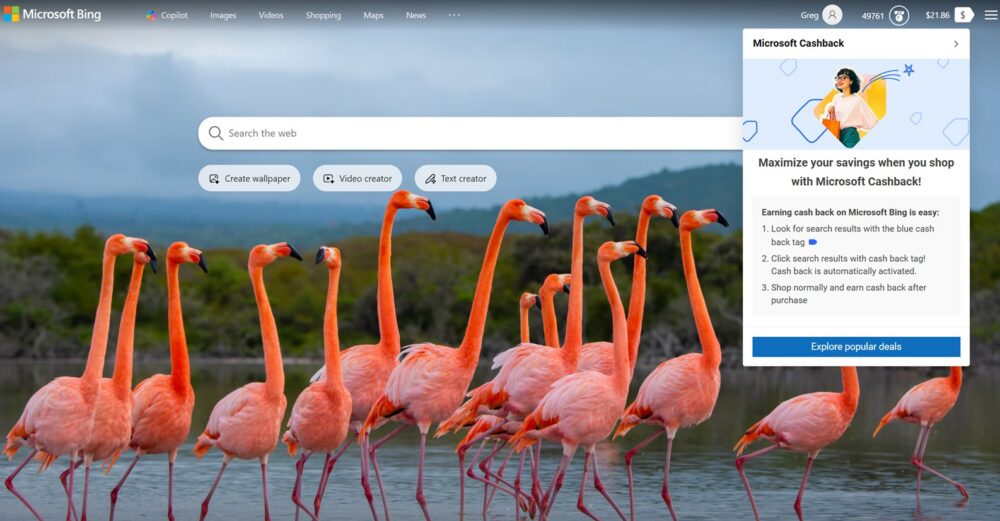
If you’re already using Microsoft Edge or searching on Bing, there’s a good chance you’re leaving free money on the table. Microsoft Cashback is a built-in rewards program that pays you real cash for shopping online with participating retailers — and most people don’t even realize it’s turned on. Here’s a breakdown of what it is, how it works, and how to actually get the most out of it.
1. What Microsoft Cashback Is (and Where It Came From)
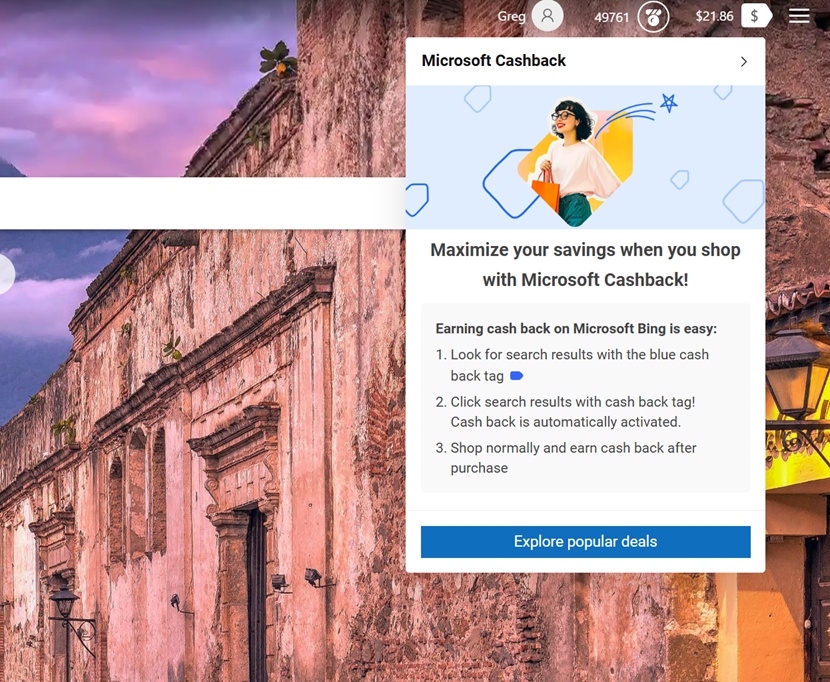
Microsoft Cashback started life as Bing Rebates, a rewards feature tied to Bing search results. Microsoft has since rebranded and expanded the program, and today it works across Bing.com, Microsoft Edge, MSN, Copilot, and the corresponding mobile apps.
The core idea hasn’t changed: when you shop with a participating retailer through one of these Microsoft products, you can earn cashback on your purchase. Microsoft may receive compensation when you click on or buy through these offer links, but that compensation doesn’t affect which results or retailers show up — so you’re not seeing biased or “sponsored-only” recommendations.
To use the program, you need three things:
- An active personal Microsoft account (work or school accounts don’t qualify)
- Enrollment in Microsoft Rewards, since Cashback runs as a companion benefit to the Rewards program
- Residency in one of the roughly three dozen participating countries, including the U.S., Canada, the U.K., and most of the EU
It’s worth clearing up a common misconception: despite the “Rewards” connection, Microsoft Cashback doesn’t pay out in Rewards points. It pays out in actual cash, credited to your Cashback account balance and transferable to PayPal. Think of Rewards membership as the key that unlocks the door, and Cashback as the actual money sitting behind it.
2. How to Earn: Microsoft Edge Is the Key
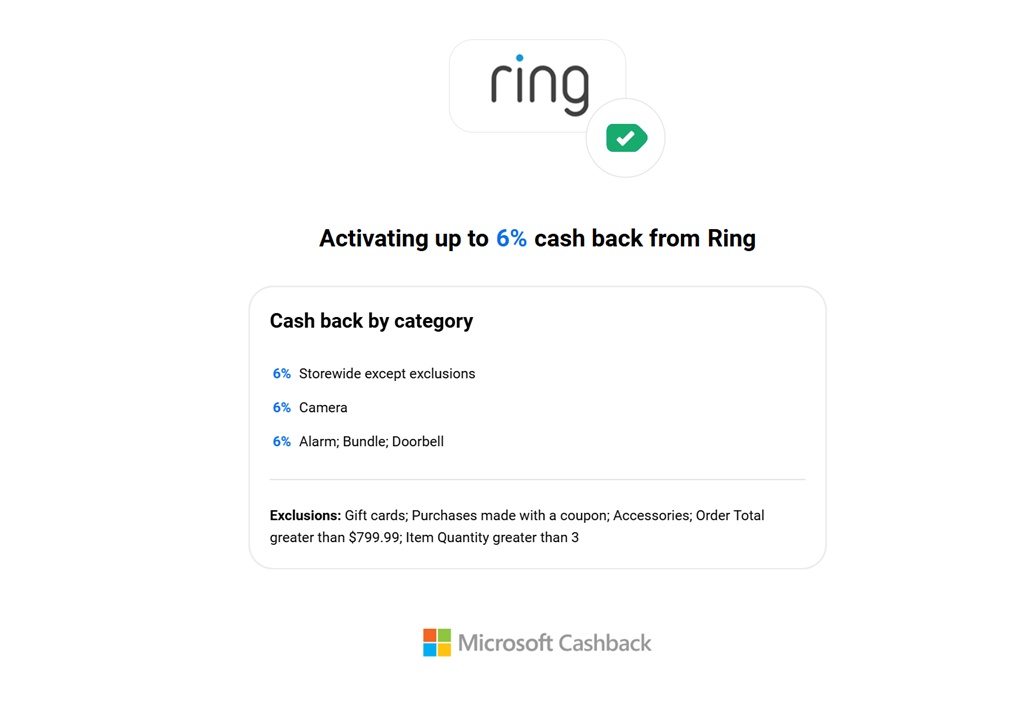
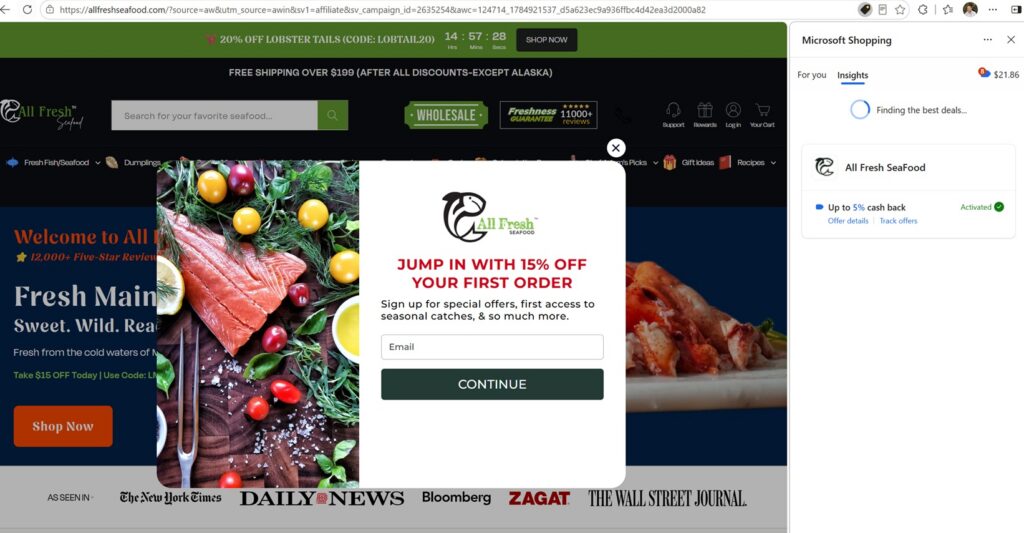
While cashback offers can technically surface in a few Microsoft products, Microsoft Edge is where the program really shines. Here is an example above of how Ring is one of the partners here. After visiting the official website, I see this Microsoft Shopping section pop up when I click on that coupon
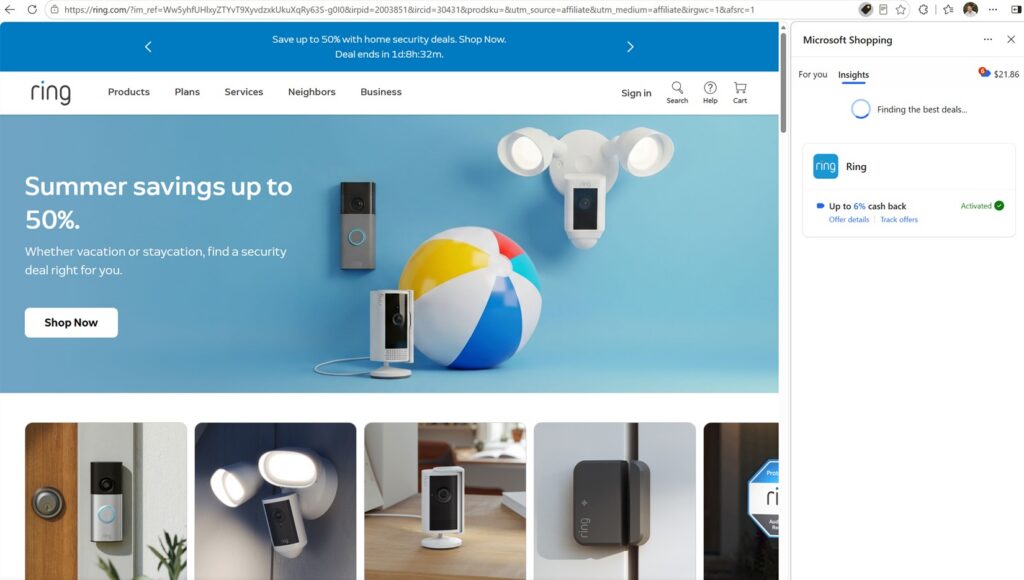
Here’s the typical flow:
- Sign in to Edge with the personal Microsoft account that’s enrolled in Cashback.
- Browse to a participating retailer’s website as you normally would. Edge will often surface a Cashback offer automatically, sometimes as a small notification in the browser. That is the example that I shared going to the Ring official website.
- Activate the offer. This step matters — if you don’t click “Activate,” the visit won’t count, even if you go on to buy something.
- Complete your purchase in that same session, on that same site, without leaving the page, opening a coupon extension, or using a promo code from another source. Any of those can break the tracking that Microsoft uses to confirm your purchase.
- Wait for confirmation. Once your order is verified as final (not returned or canceled), the cashback amount is credited to your account.
A few practical tips to avoid losing out on earnings:
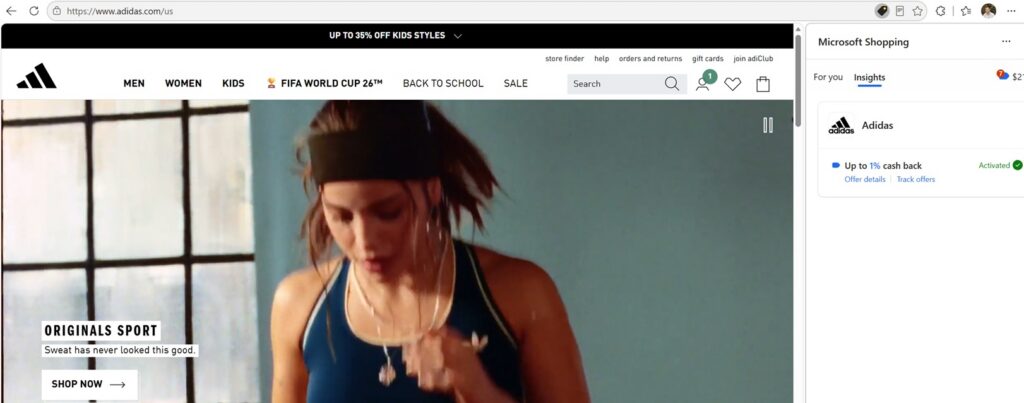
Here is an example of me on the Addidas official website and getting that offer
- Make sure third-party cookies are enabled in Edge. Most browsers allow this by default, but privacy tools or manually adjusted settings can quietly turn it off.
- Pause ad blockers while shopping through a Cashback offer, since they can interfere with activation.
- Don’t stack an unrelated coupon code on top of your Cashback activation — using outside codes is one of the most common reasons people don’t get credited.
- Complete checkout promptly after activating. Waiting too long between activation and purchase can cause the offer to expire.
You can also find Cashback tags in regular Bing search results, and on MSN.com or Outlook.com, but Edge remains the most consistent and convenient way to catch these offers as you shop, since it works passively in the background rather than requiring you to search Bing first.
3. How Much You Can Actually Earn: Up to $1,000 a Year
Microsoft caps Cashback earnings at $200 per month and $1,000 per year per account. That’s a meaningful amount if you’re already doing regular online shopping — groceries, electronics, travel, clothing, and more, depending on which retailers are running offers at any given time.
A few things to know about redeeming what you earn:
- Cashback typically shows as “Pending” for somewhere between 30 and 90 days after your purchase (longer for travel bookings), giving Microsoft time to confirm the order wasn’t returned or canceled.
- Once it flips to “Complete,” the balance is available to transfer.
- Payout happens by transferring your entire balance to a linked PayPal account — there’s no partial withdrawal option, so it’s an all-or-nothing transfer each time.
- If you expect to blow past the $1,000 annual cap through heavy shopping activity, Microsoft does allow you to reach out to Cashback Support to request a higher limit.
If you’re a household that does most of its shopping online anyway, hitting a meaningful chunk of that $1,000 ceiling over a year isn’t unrealistic — it just requires consistently activating offers before you buy.
4. Maximizing Your Savings With the Cashback Stores Hub
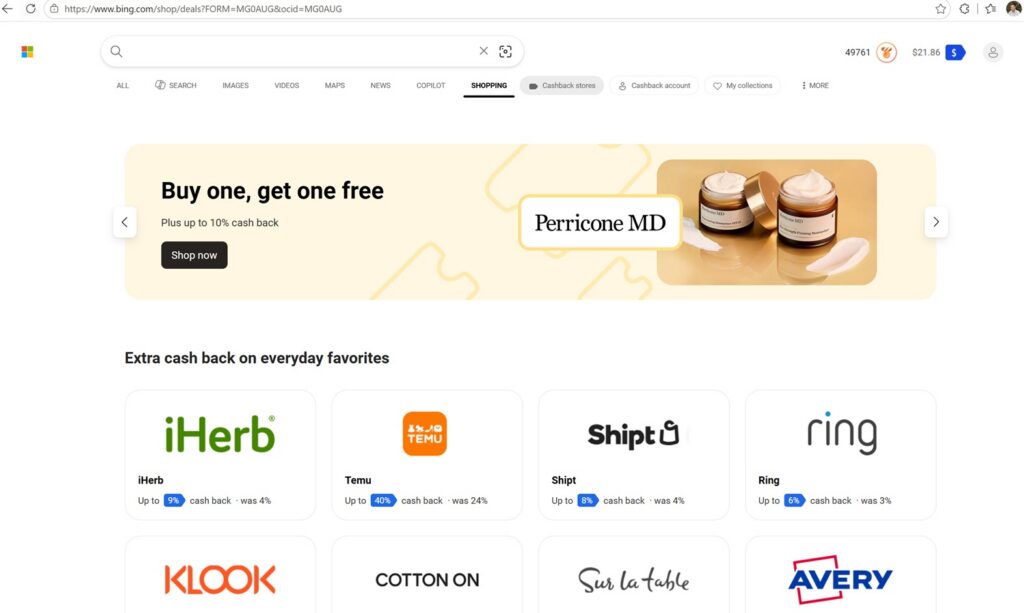
The fastest way to see what’s currently available — instead of waiting to stumble across an offer while browsing — is to go directly to the Microsoft Shopping: Cashback Stores page. This hub lets you browse participating retailers and current cashback rates in one place, so you can plan purchases around the best available offers rather than hoping Edge surfaces one at the right moment.
A few ways to squeeze more value out of it:
- Check the hub before big purchases, like electronics or holiday shopping, to see if your intended retailer currently offers an elevated cashback rate.
- Time bigger purchases around retailer-specific promotions, since cashback percentages can fluctuate and occasionally spike for limited windows.
- Combine with retailer sales, since Cashback rewards are calculated on your final purchase price — shopping during a retailer’s own sale event stacks your savings on top of an already lower price.
- Revisit regularly, since the list of participating stores and offer rates changes over time, and new retailers are added periodically.
Microsoft Cashback isn’t going to replace a dedicated budgeting strategy, but for something that costs nothing to join and runs quietly in the background of a browser you’re probably using anyway, it’s a straightforward way to claw back a little extra from purchases you were going to make regardless.