
TL;DR
- A new weekly bonus: Microsoft’s new Rewards app for Windows comes with a weekly Exclusive Quest worth up to 70 points. You open the app, complete one short activity a day, and the points go straight into your Rewards balance.
- Pin it and check in daily: The app works much like your normal Bing routine, so pinning it to your taskbar makes the daily check-in a two-second habit. A new activity appears every day, and a missed day can mean missed points.
- My honest take: When I first installed it, the app was glitchy enough that I went back to earning through the Edge browser. I plan to reinstall it once Microsoft fixes the bugs.
- Best paired with your phone: The app shines alongside the Bing app on iPhone and Android. Reading MSN articles on your phone adds about 30 points a day, and the desktop app adds up to 70 more each week. Using this app on your desktop and the Bing app adds hidden points people overlook.
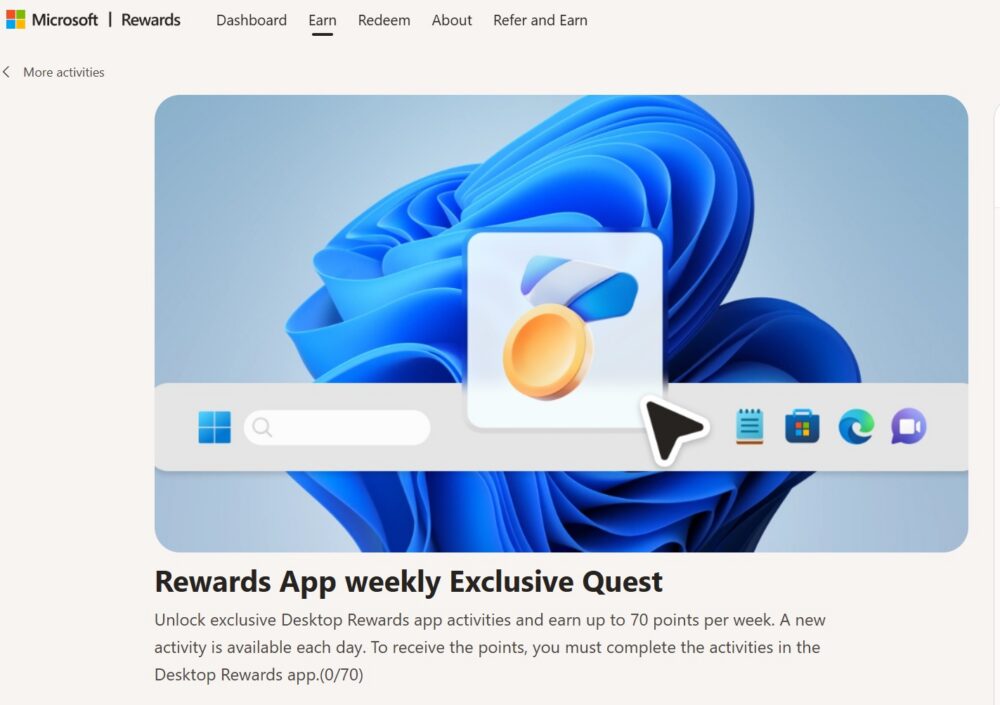
Microsoft keeps adding new ways to earn Microsoft Rewards points, and one of the latest lives right on your desktop. The Microsoft Rewards app for Windows now comes with a weekly Rewards App Exclusive Quest that pays up to 70 extra points a week. That’s not a huge haul on its own, but it adds up fast when you stack it with the other daily bonuses. Here’s how the quest works, how to make it part of your routine, and my honest take after trying the app myself.
What Is the Rewards App Weekly Exclusive Quest?
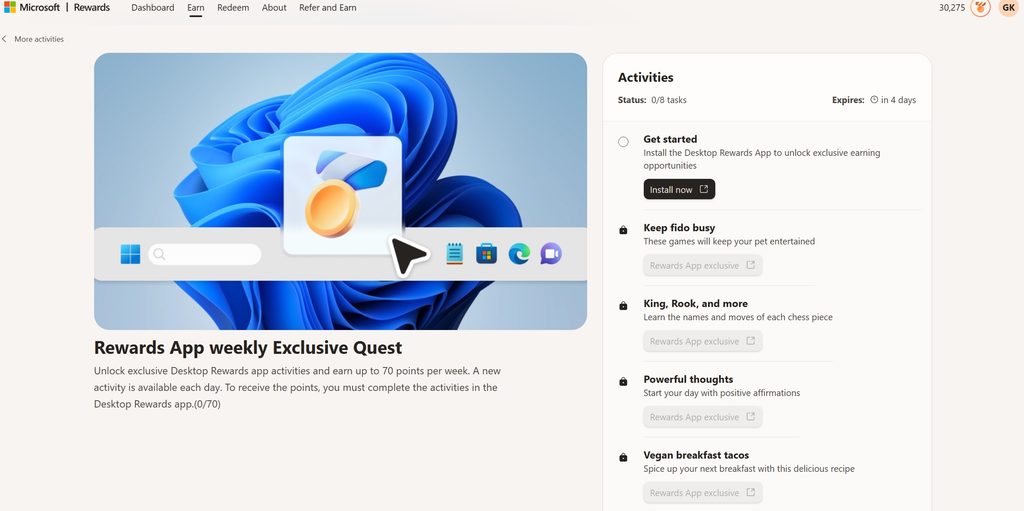
The Exclusive Quest is a weekly punch card that only unlocks inside the Microsoft Rewards desktop app. You won’t find it on the regular Rewards website or in Edge. Each week, Microsoft releases a fresh version of the quest, and completing its daily activities earns you up to 70 points per week.
To get started:
- Download the free Microsoft Rewards app from the Microsoft Store on your Windows PC.
- Sign in with the same Microsoft account you use for Bing searches.
- Open the app and look for the weekly Exclusive Quest in the Earn section.
- Complete the day’s activity, then come back tomorrow for the next one.
Because the points land in the same account as your searches, they count toward your Rewards level and every gift card you’re saving for.
It Works Like Bing, So Pin It to Your Taskbar
The good news is that the app doesn’t ask you to learn anything new. It works just like your everyday Bing searching: open it, do your activity, and the points show up in your Rewards balance. The only real challenge is remembering to open it every day.
That’s where your taskbar comes in. After you install the app, right-click its icon and choose Pin to taskbar. Now it sits right next to Edge, File Explorer, and your other daily apps, so checking in takes about two seconds. Some members have also reported better results by launching it from the Windows taskbar search, typing “Microsoft Rewards,” rather than through a browser. If you want to go a step further, you can set it to open automatically when your PC starts.
A New Activity Every Day
The weekly quest isn’t a one-and-done task. Every day, the app unlocks a new activity to complete. Each one only takes a moment, and you can only finish one per day, so you can’t knock out the whole week at once.
That makes consistency the key to earning the full 70 points. Members on Microsoft’s own support forums have reported that missing a day can mean losing that day’s reward for good. Treat it like a daily streak: open the app once a day, finish the activity, and move on. If you’re already doing your Bing searches each morning, adding this step takes almost no extra time.
My Honest Take: Promising, but Still Buggy
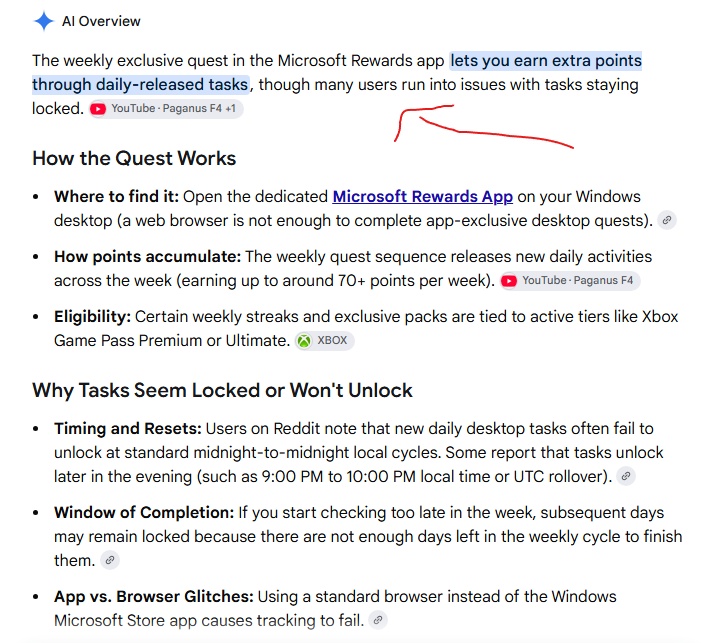
I was excited to try the app when it first showed up, so I installed it right away. Unfortunately, my experience didn’t match the promise. The app felt glitchy, and I ran into enough issues that I didn’t trust it to track my points reliably. I believe these problems are bugs on Microsoft’s end rather than anything users are doing wrong.
I’m not alone, either. On Microsoft’s Q&A forum, several members reported that their quests stayed locked even after installing and signing in, and some reinstalled the app multiple times before it worked.
For now, I’ve gone back to earning through the Edge browser, which has been reliable for me. I’ll download the app again once Microsoft irons out the bugs. If you try it and it works smoothly, great. Just keep an eye on your points history to make sure each day’s activity is actually counting.
Pair It With the Bing App on Your Phone
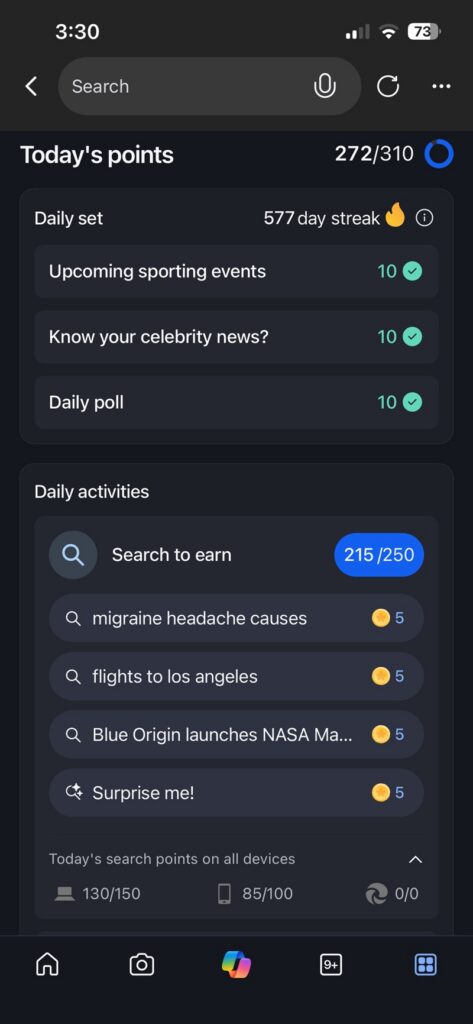
The desktop app is most valuable as one piece of a bigger routine. On its own, 70 points a week is modest. Combined with the Bing app on your phone, it becomes part of a steady stream of bonus points:
The Bing app has its own earning opportunities, including mobile searches, daily check-ins, and daily activities. One of my favorites is reading MSN articles. Opening and reading Microsoft’s MSN news stories in the Bing app earns about 30 points per day.
Here’s how the two work together:
| Activity | Where | Points per week | Points per month (approx.) |
| Reading MSN articles | Bing app on your phone | about 210 | about 900 |
| Weekly Exclusive Quest | Rewards app on Windows | up to 70 | about 280 |
| Total | about 280 | about 1,180 |
That’s nearly 1,200 bonus points a month, on top of your regular searches, from two quick habits. In about four months, these two habits alone can cover a $5 Microsoft Gift Card.
Final Thoughts
The Rewards App weekly Exclusive Quest is an easy way to add up to 70 points a week. Pin the app to your taskbar, open it once a day, and complete each new activity. It’s not perfect yet. In my experience the app is still glitchy, so I’m using Edge until Microsoft fixes it. But if it runs smoothly on your PC, pairing it with daily MSN reading in the Bing app is a simple way to earn more than a thousand extra points each month.
Key Takeaways
- Bonus: Up to 70 points weekly.
- Habit: Pin it, check in daily.
- Caveat: App is still buggy.
- Stack it: Add 30 daily MSN points.
Similar Posts:
- Use Windows Taskbar to Earn Bonus Microsoft Rewards Points
- What Is the Weekly PC Bonus in Microsoft Rewards?
- I Earned 4,710 Additional Microsoft Reward Points to Start August 2026
- How Does the Edge Browsing Streak Work for Microsoft Rewards?
- What Is the Microsoft Rewards PC Punch Card (Campus Collection)?
- How Does the Default Search Bonus Work for Microsoft Rewards?
- What Is the Microsoft Bing Star Bonus in Microsoft Rewards?