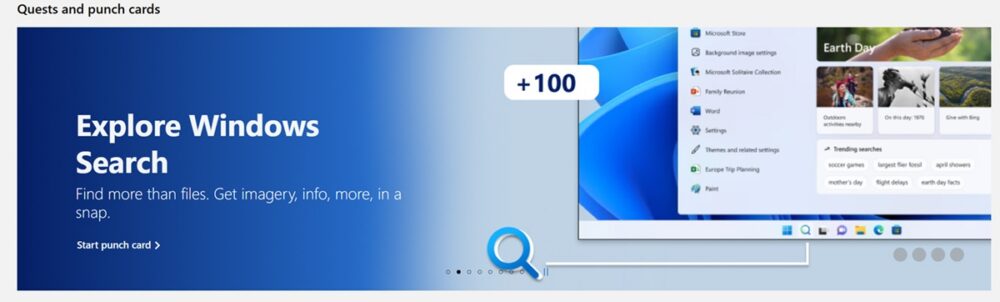
If you’re a Microsoft Rewards member looking for an easy way to earn additional points, you may have noticed a Windows Search activity or punch card on your Microsoft Rewards dashboard. This offer rewards users for completing searches directly from the Windows 11 (and also Windows 10) Search box, making it one of the simplest bonuses available for anyone already using a Windows PC.
In this guide, we’ll explain what Windows Search is, what you need to qualify, how the 100-point offer works, and why using the Windows Taskbar for everyday searches can help you continue earning Microsoft Rewards points over time.
In this post, I will share how the program works along with a video of me completing all four punch cards to get 100 points.
Explore Windows Taskbar Search to Earn More Microsoft Reward Points
Did you know you can earn an extra 100 Microsoft Rewards points just by using Windows Search on Windows 11? In this video, I show you exactly how I completed all four Windows Search punch card tasks in a single session and successfully earned the full 100-point bonus. Instead of spreading the searches out over multiple days, I completed every required punch card one after another using the Windows Search box on the taskbar. Since Windows Search uses Bing and opens results in Microsoft Edge, the searches counted toward the promotion and the bonus points were awarded. If you’re trying to maximize your Microsoft Rewards earnings, this is one of the easiest promotions to complete. I’ll walk you through what the punch card looks like, how to perform the searches correctly, and a few tips to make sure your searches register. If you’re a regular Microsoft Rewards user, be sure to subscribe for more tutorials, point-earning strategies, Bing tips, and updates on new Rewards promotions. Have you completed the Windows Search punch card yet? Let me know in the comments how long it took you and whether you earned the full 100 points! #MicrosoftRewards #Windows11 #Bing #MicrosoftEdge #Rewards #WindowsSearch #FreePoints #TheFreePointsWhat Is Windows Search on Windows 11?

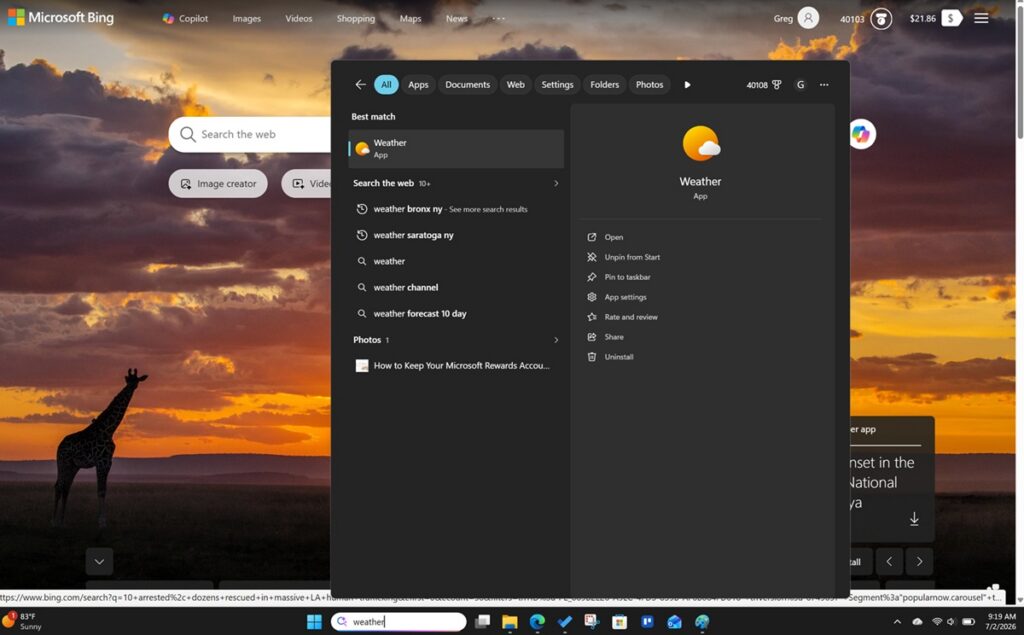
Windows Search is the search box built directly into the Windows 11 (and also Windows 10) taskbar. Instead of opening your browser first, you can simply click the search icon or search bar next to the Start menu and type what you’re looking for.
Windows Search can find:
- Apps installed on your PC
- Documents and files
- Settings
- Photos
- Emails (when supported)
- Web results powered by Bing (this is where the points come from)
When you perform a web search from the Windows Search box, Windows automatically opens the results in Microsoft Edge using Bing Search. This integration is what allows qualifying searches to count toward Microsoft Rewards. Microsoft specifically includes the Windows Search box as one of the supported ways to earn Rewards points.
What Do You Need to Earn the Windows Search Bonus?
Before attempting the Windows Search punch card or promotion, make sure you have the following:
A Windows 11 PC (But a Windows 10 Still Works)
While some offers have appeared for Windows 10 in the past, Microsoft is primarily promoting Windows Search on Windows 11 for current Rewards activities. Availability may vary by region and account. I can
A Valid Microsoft Rewards Account
You’ll need to be signed into the same Microsoft account that participates in Microsoft Rewards.
Microsoft Edge
When Windows Search opens web results, it launches Microsoft Edge by default. Being signed into Edge with your Rewards account helps ensure your searches are properly credited.
Bing as the Search Engine
Windows Search uses Bing for web searches by default. Since Microsoft Rewards awards points for qualifying Bing searches, no additional configuration is normally required.
The Rewards Offer
The Windows Search bonus doesn’t appear for every account all the time. Check your Microsoft Rewards dashboard periodically for available punch cards and promotional offers. Here is that link again since you need to start the task manually to get these 100 points
How Does the Extra 100-Point Offer Work?
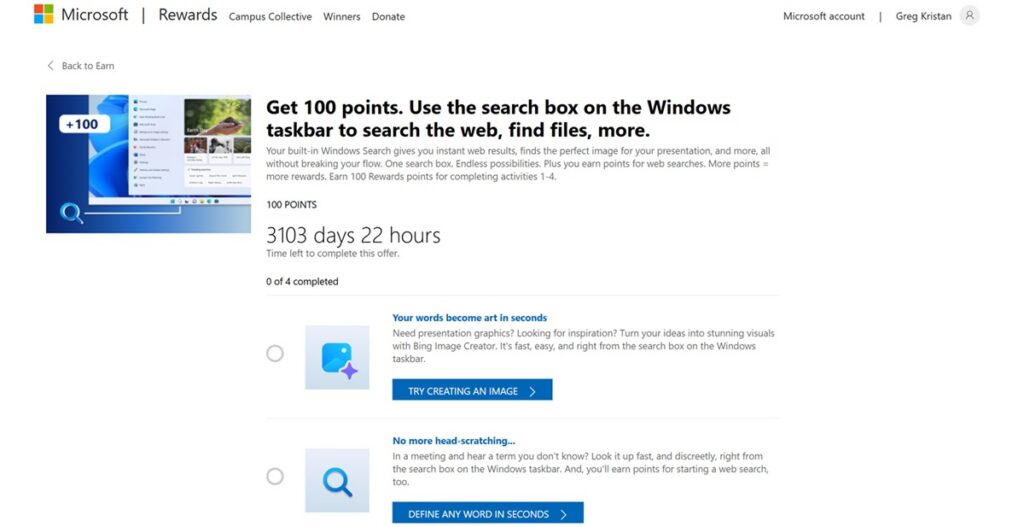
Microsoft occasionally offers a Windows Search punch card that awards 100 Microsoft Rewards points after completing the required searches using the Windows Search box.
Although requirements can change, the process generally looks like this:
- Open your Microsoft Rewards dashboard.
- Activate or click the Windows Search offer.
- Use the Windows Search box on your taskbar.
- Perform the required number of qualifying web searches.
- Allow the searches to open in Microsoft Edge using Bing.
- Return to the Rewards dashboard to verify completion.
Because these promotions occasionally change, always follow the instructions shown on your own Rewards dashboard. Microsoft regularly rotates punch cards and bonus offers.
Why Your Searches May Not Count
One common source of confusion is that not every search performed inside Windows Search qualifies.
For example:
- Searching only for a local file may not count.
- Opening an installed app may not count.
- Performing a web search that opens Bing in Microsoft Edge is much more likely to qualify.
Many Microsoft Rewards users have found that searches resulting in Bing web results trigger the offer more consistently than searches that only return local computer results.
If your searches aren’t tracking:
- Verify you’re signed into your Microsoft account.
- Confirm Edge is signed into the same account.
- Make sure the search opens Bing web results. For example, me searching for “Yankees Score” and seeing the score in the windows search won’t trigger any points. I need to click on the web results part to trigger the actual completion.
- Refresh your Rewards dashboard after completing the searches.
You can read more about the common Microsoft Reward mistakes that people make to learn more.
Continue Earning Points with Windows Search
Even after you’ve completed the promotional punch card, Windows Search can become part of your normal Microsoft Rewards routine.
Instead of opening your browser manually every time you want to search the web, simply:
- Click the Windows Search box
- Type your search
- Press Enter
Because Windows Search sends web queries through Bing and Microsoft Edge, qualifying searches can contribute toward your daily Microsoft Rewards search limits. Microsoft even lists the Windows Search box as one of the supported methods for earning search points.
Make the Windows Taskbar Part of Your Daily Routine
One of the easiest habits you can build is using the taskbar search instead of typing “bing.com” or opening another browser first. For me, I use the taskbar to look up my apps (PowerPoint, WhatsApp, Word, etc), so I’m already using this feature on a regular basis.
For example, instead of opening a browser to search:
- Today’s weather
- Sports scores
- Stock prices
- Recipes
- Local businesses
- Quick facts
Simply click the Windows Search icon and start typing.
Not only is it faster, but it also helps ensure you’re using Bing for searches that may qualify for Microsoft Rewards.
Over time, these daily searches can add up alongside your other earning opportunities such as:
- Daily Sets
- Bing desktop searches
- Mobile searches
- Microsoft Edge bonuses
- Shopping offers
- Xbox activities
The more consistently you use Microsoft’s ecosystem, the easier it becomes to maximize your monthly Rewards earnings.
This is an Easy 100 Points to Get

A 100-point promotion only takes a few minutes to complete and stacks on top of your regular daily search earnings. If you’re already using Windows 11 and Windows 10, there’s very little extra effort involved.
Even if the punch card eventually disappears, switching your everyday searches to the Windows Search box is a simple habit that can continue contributing toward your regular Bing search points whenever eligible.
Since Microsoft frequently introduces new Rewards promotions, it’s also a good idea to check your Rewards dashboard several times each week for new punch cards and limited-time bonuses.
Final Thoughts
The Windows Search bonus is one of the easiest Microsoft Rewards promotions available for Windows 11 users. By completing a few searches through the built-in Windows Search box, eligible members can earn an additional 100 Microsoft Rewards points while becoming more familiar with one of Windows 11’s most useful features.
If you’re already performing Bing searches each day, consider making the Windows Taskbar your starting point. Because Windows Search defaults to Bing and Microsoft Edge for web results, it provides a convenient way to complete searches while continuing to earn Microsoft Rewards points whenever eligible. Just remember to stay signed into your Microsoft account, complete searches naturally, and check your Rewards dashboard regularly for new offers and punch cards.
Plus, I was able to earn these 100 points in just 2 minutes via the video that I recorded, so anyone can do this too.